

Raspberry Pi & Co.
The easiest way to install evcc on a Raspberry Pi or similar single-board computers. Pre-configured and ready to set up via the web UI!
Quick Start
Section titled “Quick Start”-
Download File
Section titled “Download File”Go to the evcc Linux Images and download the latest version for Raspberry Pi (
evcc_{version}_rpi.img.zip). -
Flash SD Card
Section titled “Flash SD Card”If not already available: Download balenaEtcher
- Insert SD card into computer
- Open balenaEtcher
- Flash from file → select downloaded file
- Select target → select your SD card
- Flash! → wait until finished
-
Start Raspberry Pi
Section titled “Start Raspberry Pi”- Insert SD card into Raspberry Pi
- Connect network cable (recommended) - alternatively set up WiFi
- Connect power adapter
- Wait until started
-
evcc Web UI
Section titled “evcc Web UI”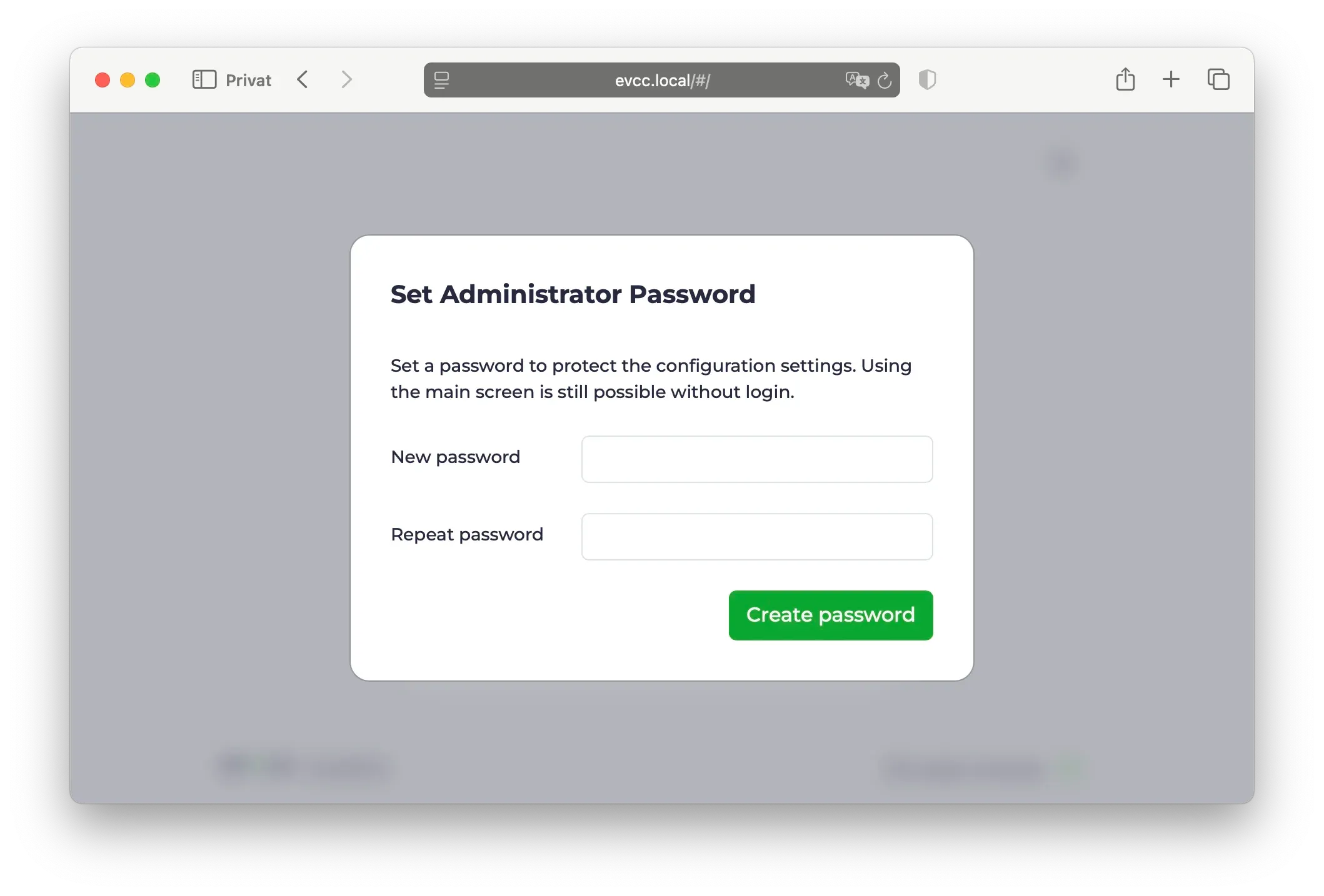
- Open browser
- Enter https://evcc.local/
- Certificate warning must be accepted (normal, connection is encrypted)
- Alternatively via IP address, e.g.,
https://192.168.1.123/(determine IP in router)
- Set administrator password (on first start)
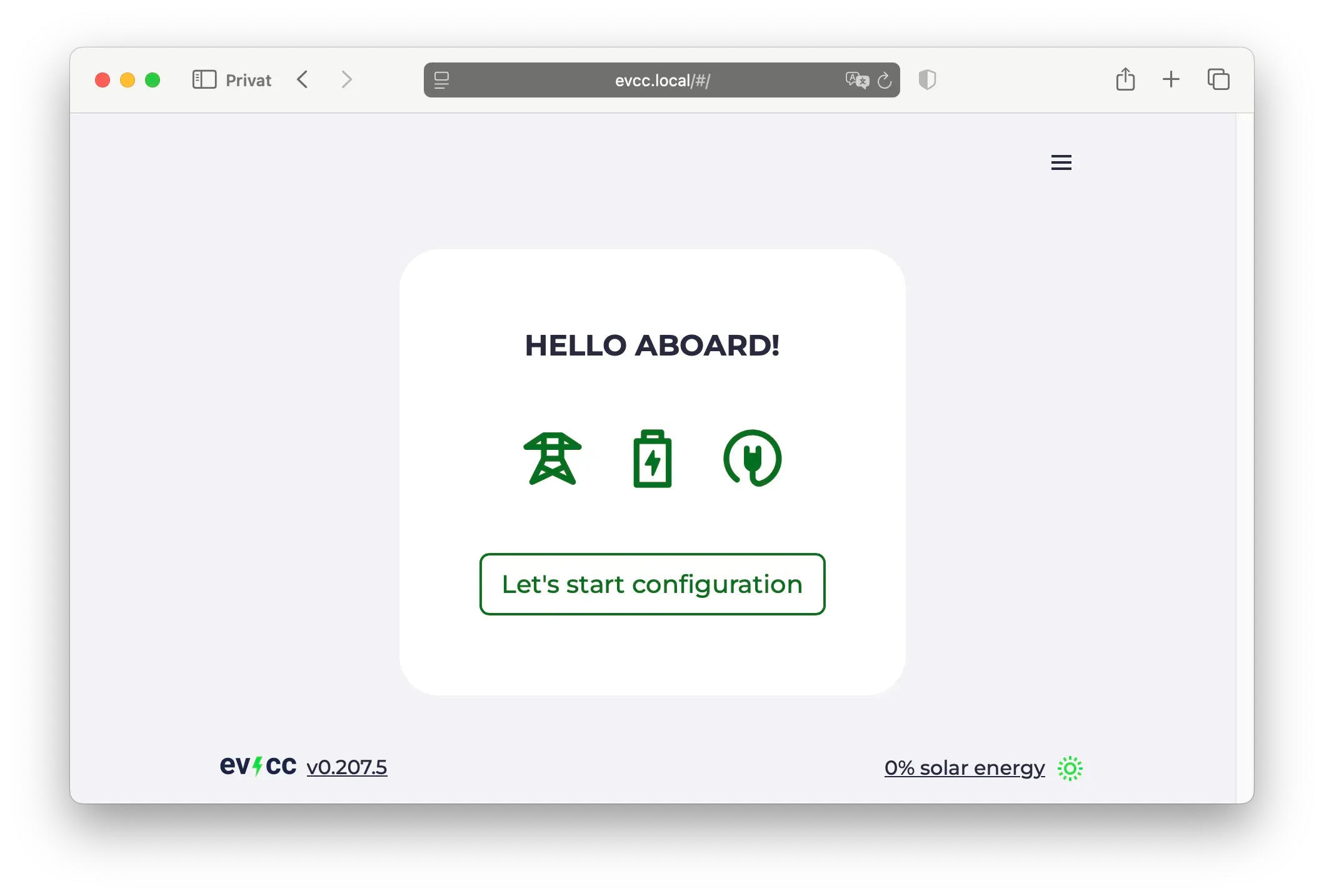
- Set up devices (wallbox, solar system, home battery, vehicles)
- Note: At least one loadpoint must be created for evcc to run.
More details on setup can be found in the configuration guide.
Done! 🎉
System configuration and updates work via Cockpit. Log in there once to change the default Linux password.
Set up WiFi
Section titled “Set up WiFi”If no network cable is available, the Raspberry Pi creates a WiFi hotspot for initial setup.
- Search for WiFi “evcc-setup” on your smartphone
- Connect (no password required)
- Select your home WiFi network from the list
- Enter your home WiFi password
- Raspberry Pi ends the hotspot and connects to your home WiFi
- Continue with evcc Web UI
WiFi configuration can also be done later via Cockpit.
System Management via Cockpit
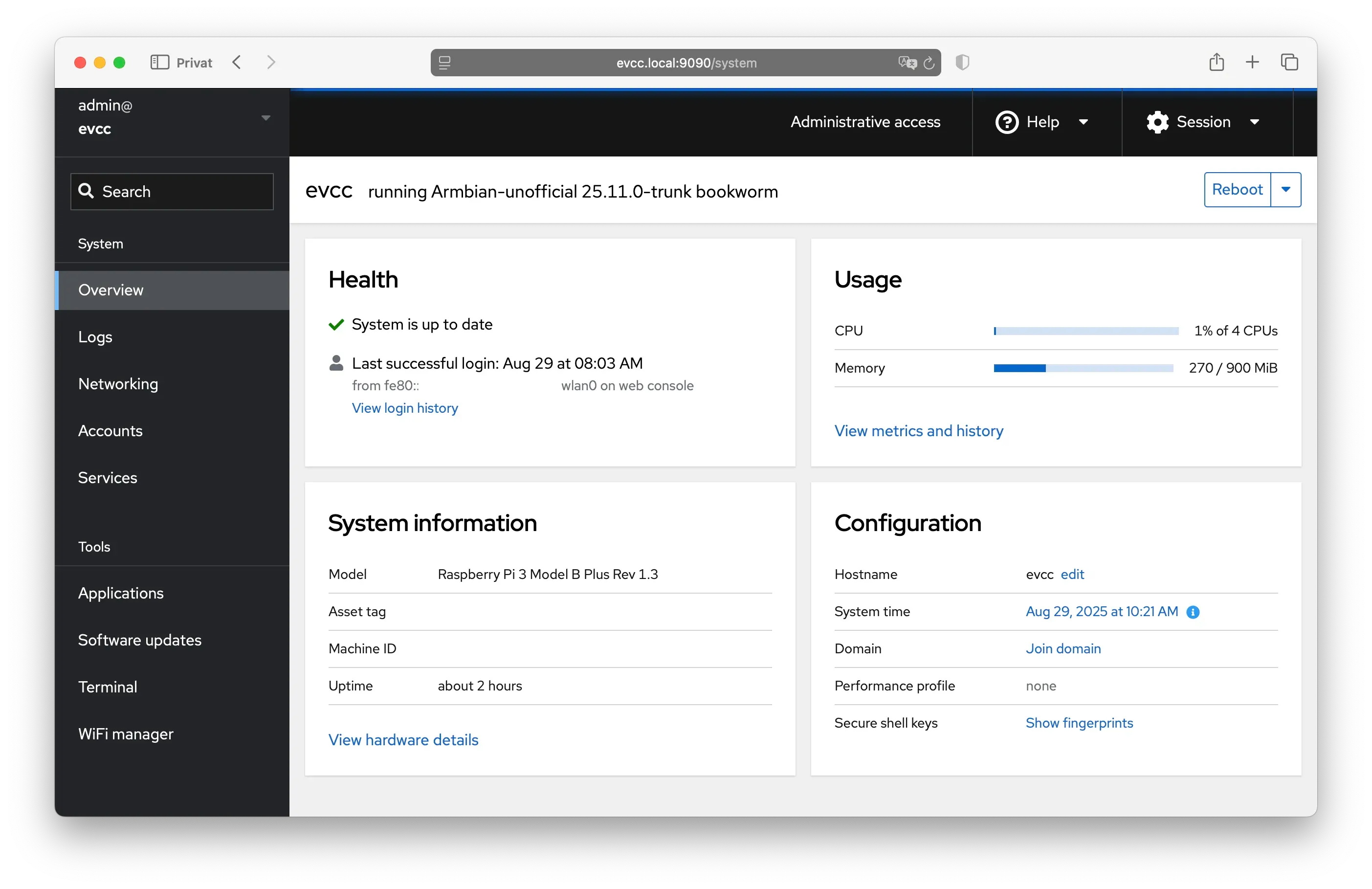
Section titled “System Management via Cockpit”Cockpit is a graphical system management interface for Linux. Here you can configure your system, install updates, and change network settings.
- URL: https://evcc.local:9090/
- User:
admin - Password:
admin(initial)
On first login, you’ll be prompted to change the default password. Choose a secure password for system management. If you forget it, you’ll need to flash the SD card again. There is no “forgot password” function.
Important Functions:
- System: Overview of CPU, memory, and disk
- Logs: View system logs
- Networking: Configure network and WiFi
- Navigator: File editor for configuration files
- Terminal: Access to command line
- Software Updates: Update system
Hardware Recommendations
Section titled “Hardware Recommendations”evcc runs on various single-board computers and needs only few resources. Even 1 GB RAM is completely sufficient.
Supported Devices:
- Raspberry Pi 3, 4, and 5 - all models work equally well
- Raspberry Pi Zero 2 W - works well
- NanoPi R3S - compact, affordable, and comes with case and integrated eMMC storage
Storage: At least 16 GB SD card or eMMC. For longer lifespan, we recommend eMMC instead of SD card (e.g., with NanoPi). SD cards can wear out from frequent write operations. See also Armbian recommendations.
Power Supply: Use original power supply from respective manufacturer.
Network: Wired connection is strongly recommended. WiFi is possible but often less stable.
About the evcc Linux Image
Section titled “About the evcc Linux Image”The evcc Linux image is based on Armbian and offers some practical features:
Available Services
Section titled “Available Services”| Service | URL | Note |
|---|---|---|
| evcc Web UI | https://evcc.local/ | self-signed cert (default) |
http://evcc.local:7070/ | unencrypted | |
| OCPP Server | ws://evcc.local:8887/<station-id> | unencrypted (default) |
wss://evcc.local:8888/<station-id> | self-signed cert | |
| Cockpit | https://evcc.local:9090/ (initial password: admin) | self-signed cert |
| SSH | ssh admin@evcc.local (initial password: admin) |
The image offers an encrypted version for all services. We recommend using encrypted connections even in local networks. For OCPP, some wallboxes don’t support self-signed certificates. Use unencrypted WS as a fallback.
Updates
Section titled “Updates”- Operating system: Security updates are automatically installed
- evcc: Updates can be performed manually via Cockpit
SSH Access
Section titled “SSH Access”You can connect via SSH with the admin user (same credentials as Cockpit).
More technical details can be found in the GitHub Repository.
Next Steps
Section titled “Next Steps”In the Features section, you can learn about all possibilities of evcc. Also download the iOS/Android app.